
1) Turn on the VPRO1 picoprojector and launch the Happy Cast application. (Main Menu –> App –> Happy Cast
 ).
(Do not download the latest update. To go back to the previous version you can download the apk for the VPRO1 here.)
2) The VPRO1 and the MacBook should now be connected to the same WiFi signal.
3) At the top right of your screen, click on the aiplay icon
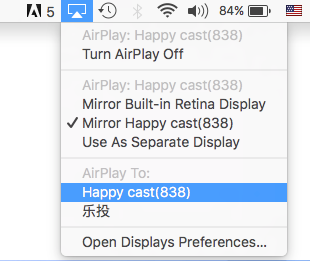
Your screen should now appear on the VPRO1 mini projector. Be careful, most of the videos are blocked by the AirPlay.
To watch a YouTube video on the VPRO1, check out this tutorial.