
————————————————–
XPRO1————————————————– |
|
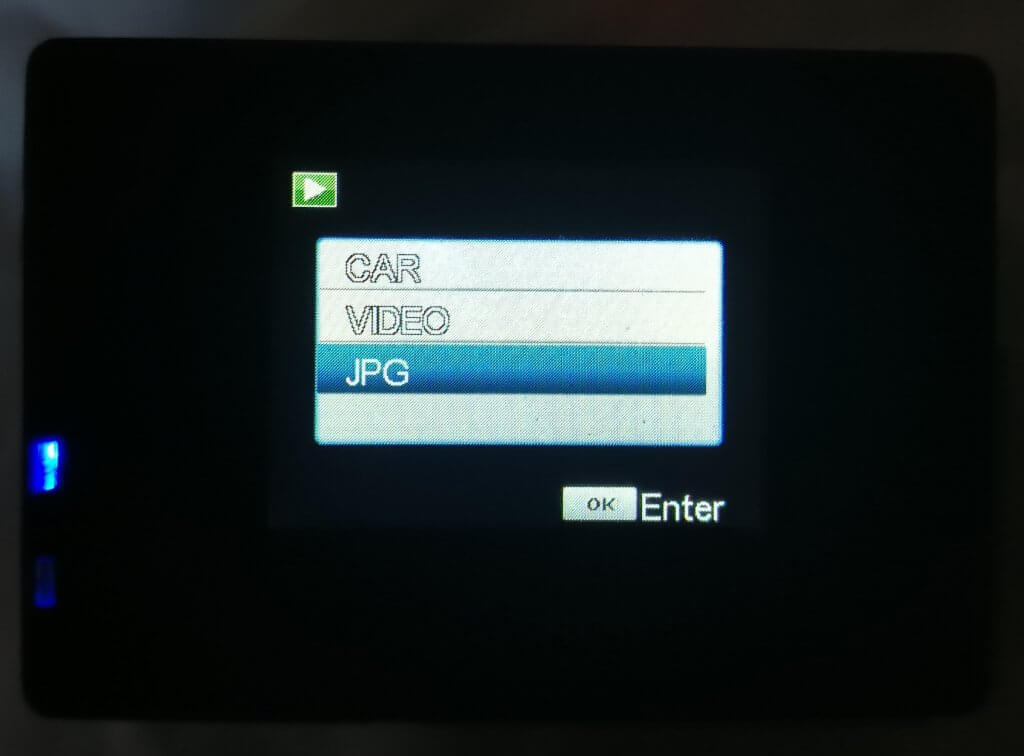
| Step 1
View the file you want to delete by selecting either JPG or VIDEO |
 |
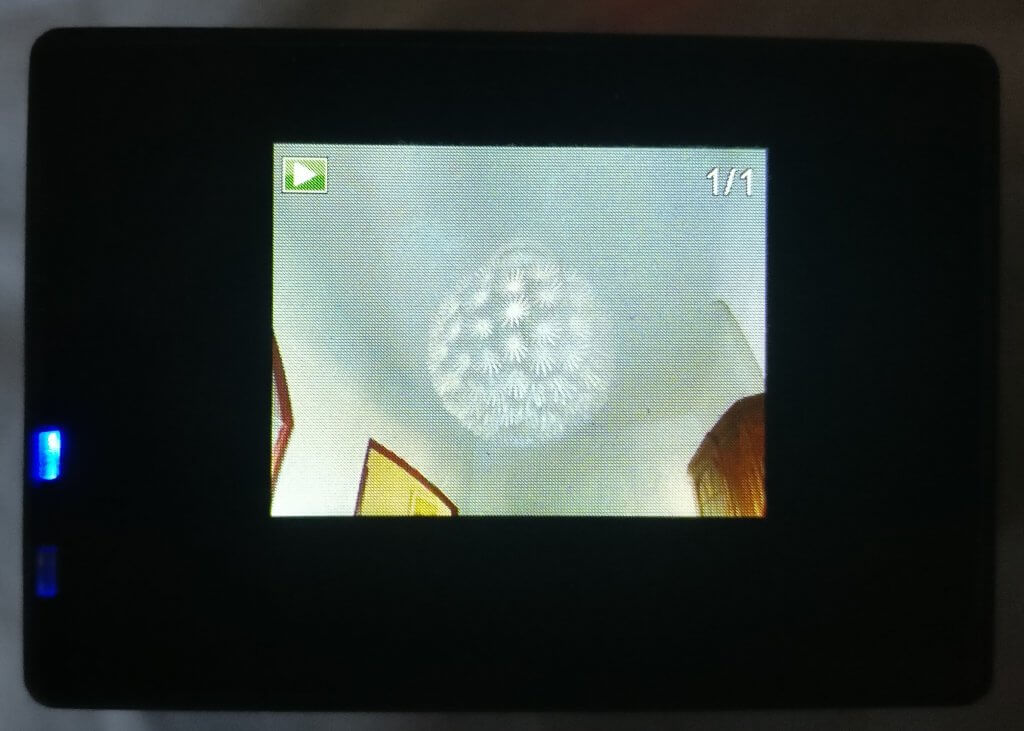
| Step 2
Keep the file you want to delete on the screen |
 |
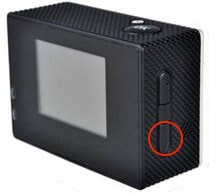
| Step 3
Press and hold “Down” arrow button |
 |
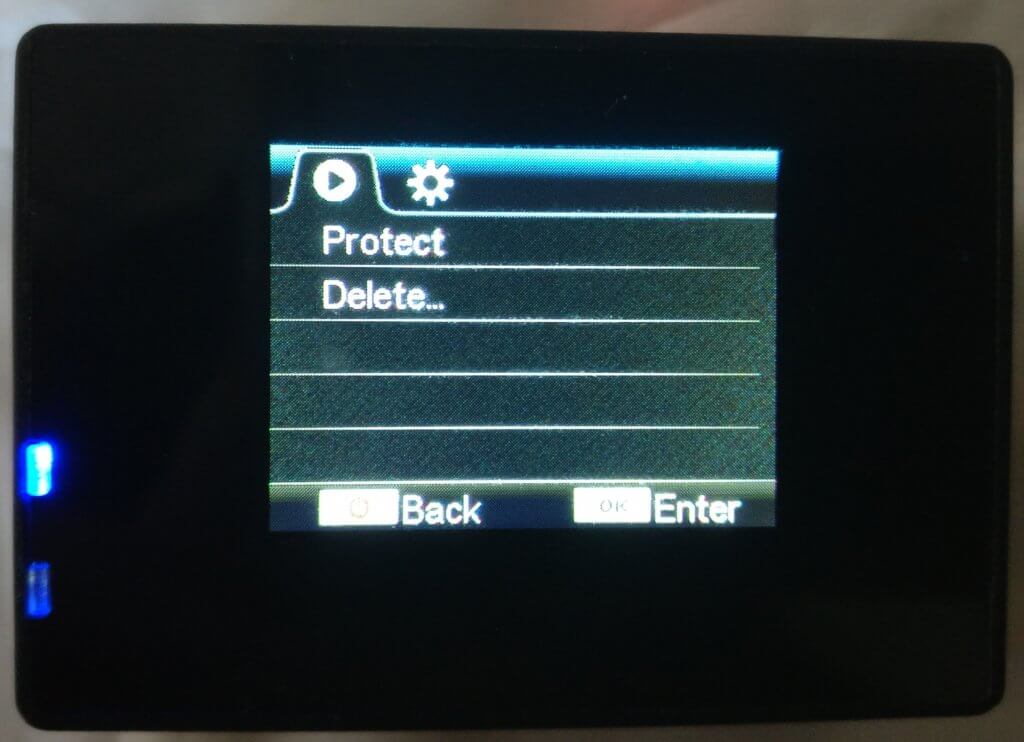
| Step 4
Select “Delete” from the menu |
 |
| Step 5
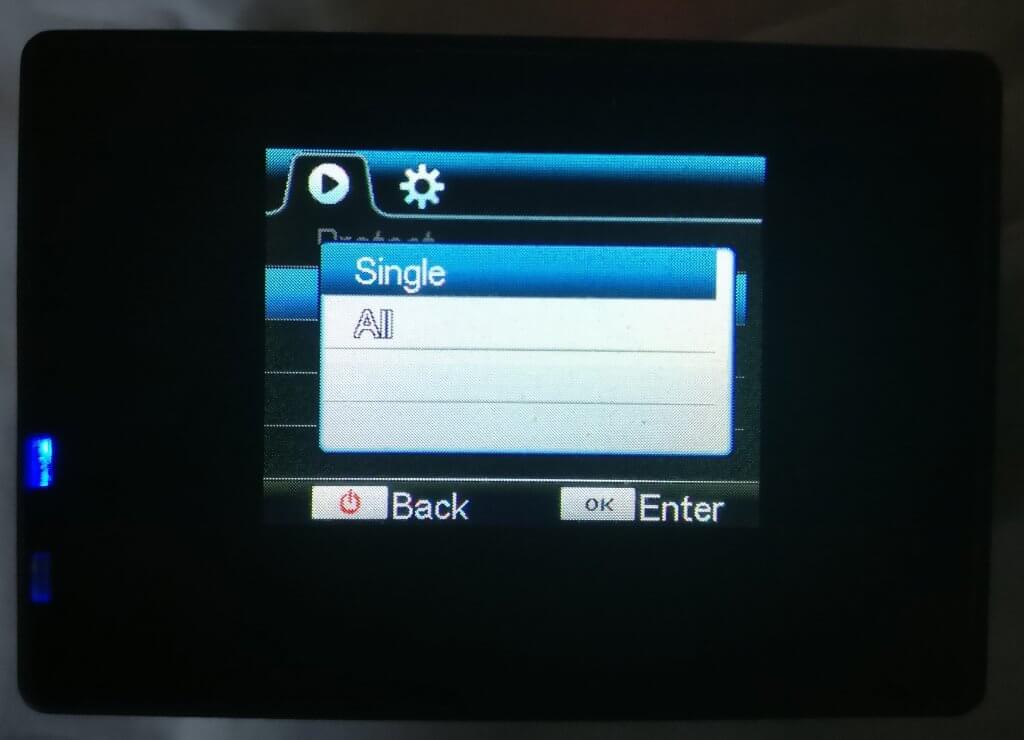
Choose “Single” if you want to delete only one file, choose “All” if you want to delete all files |
 |
| Step 6
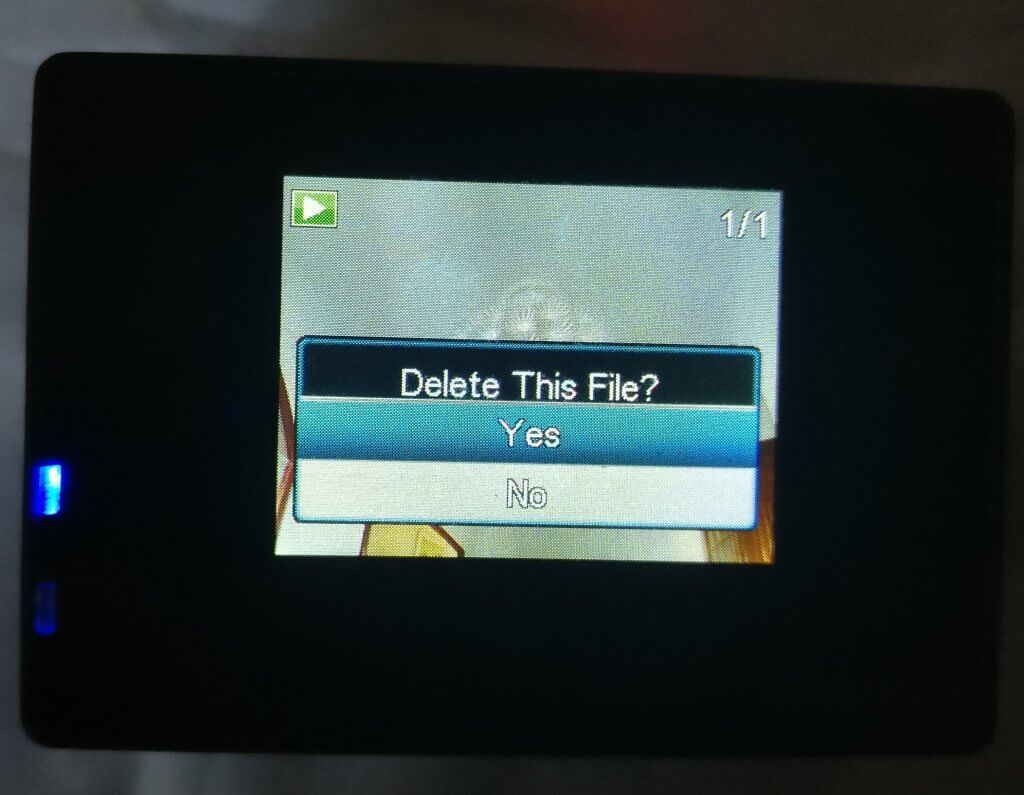
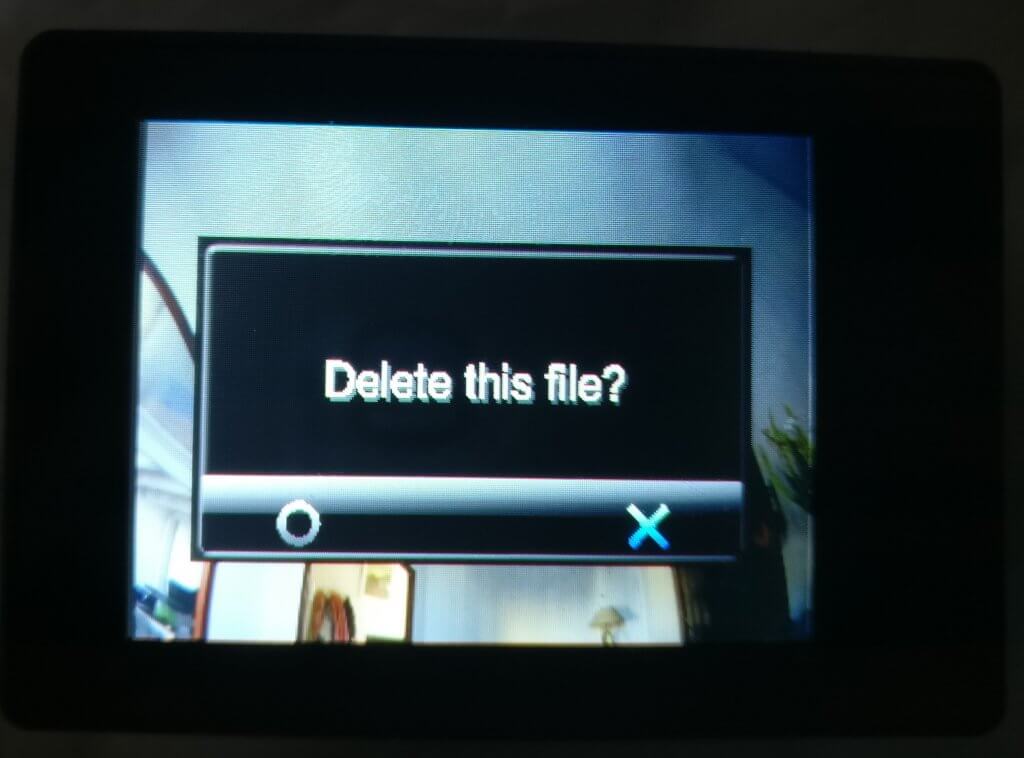
When the prompt “Delete this file?” appears, select “Yes” |
 |
————————————————–XPRO2, XPRO2+————————————————– |
|
| Step 1
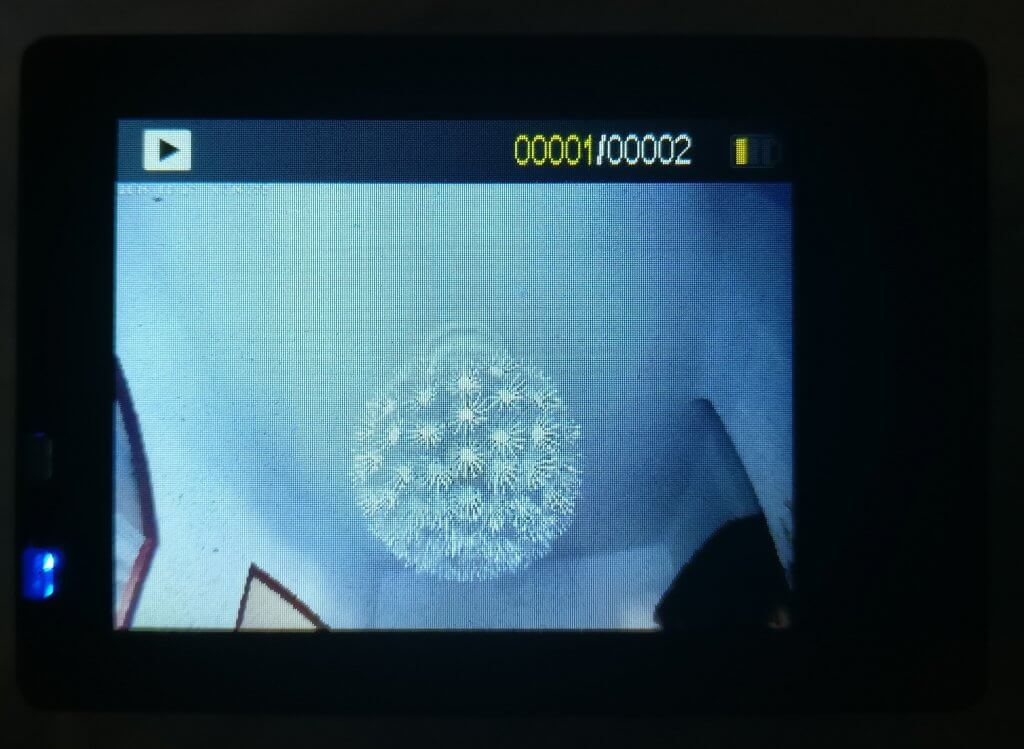
Choose the file you want to delete and keep it on the screen |
 |
| Step 2
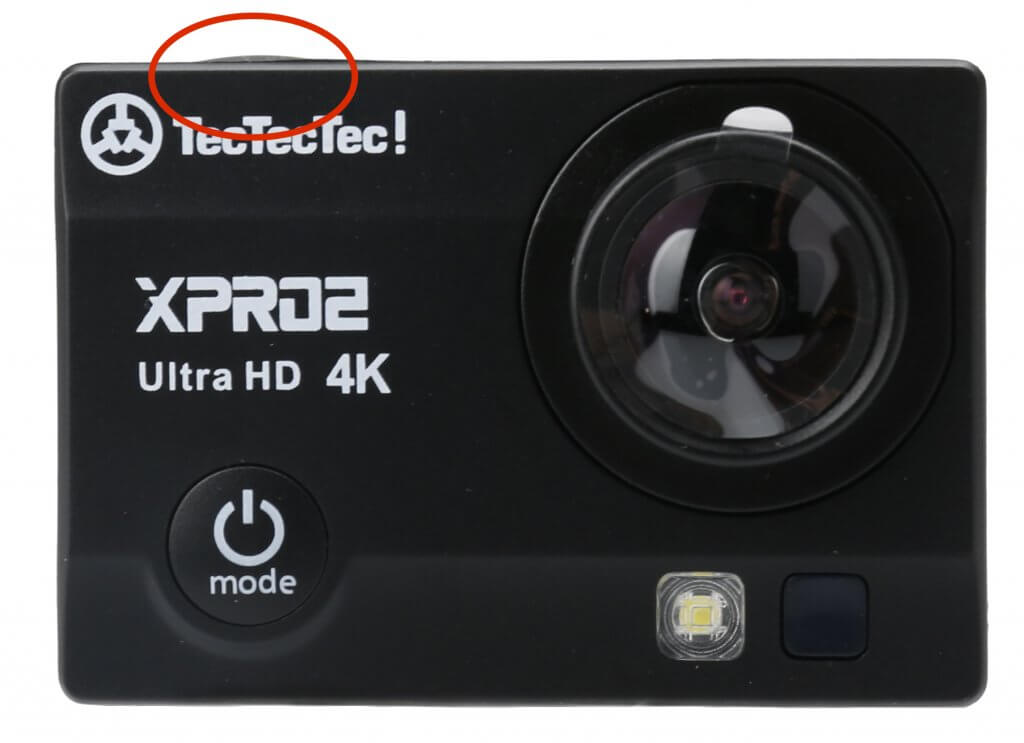
Press and hold “OK” button |
 |
| Step 3
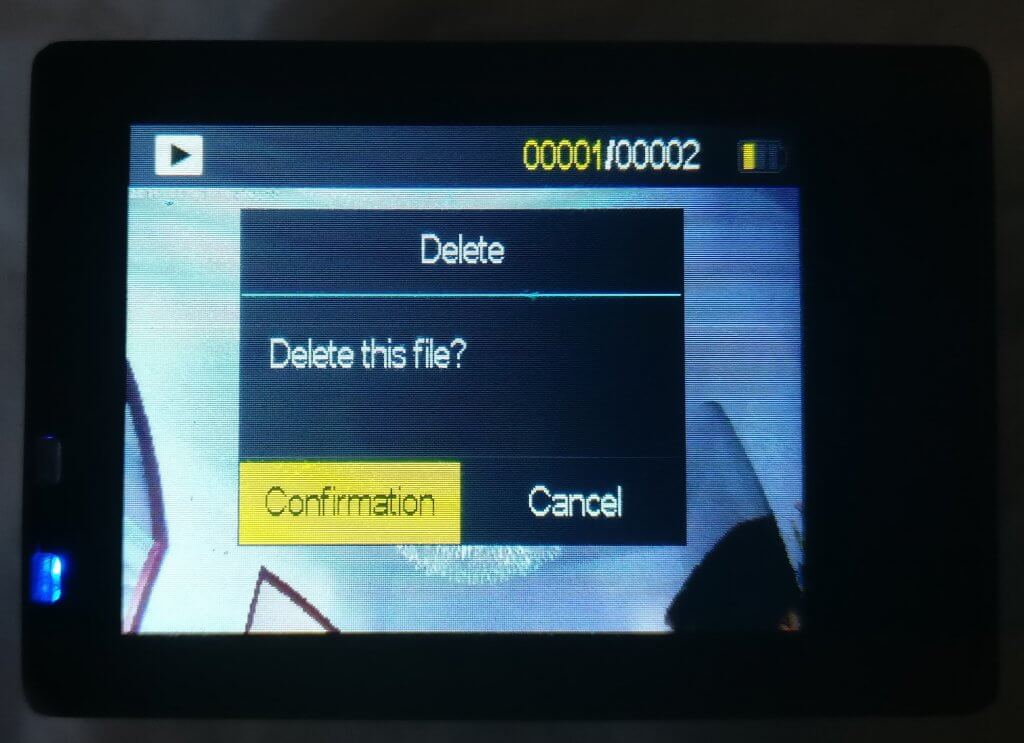
When the prompt “Delete this file?” appears, select “Confirmation” |
 |
————————————————–XPRO3————————————————– |
|
| Step 1
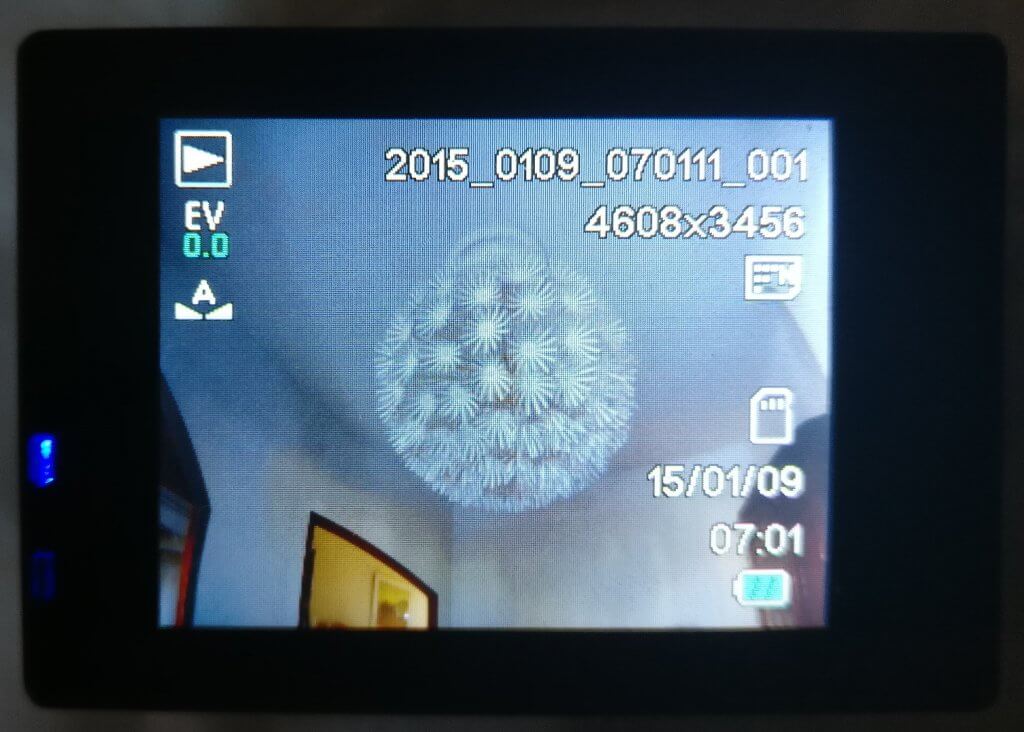
Choose the file you want to delete and keep it on the screen |
 |
| Step 2
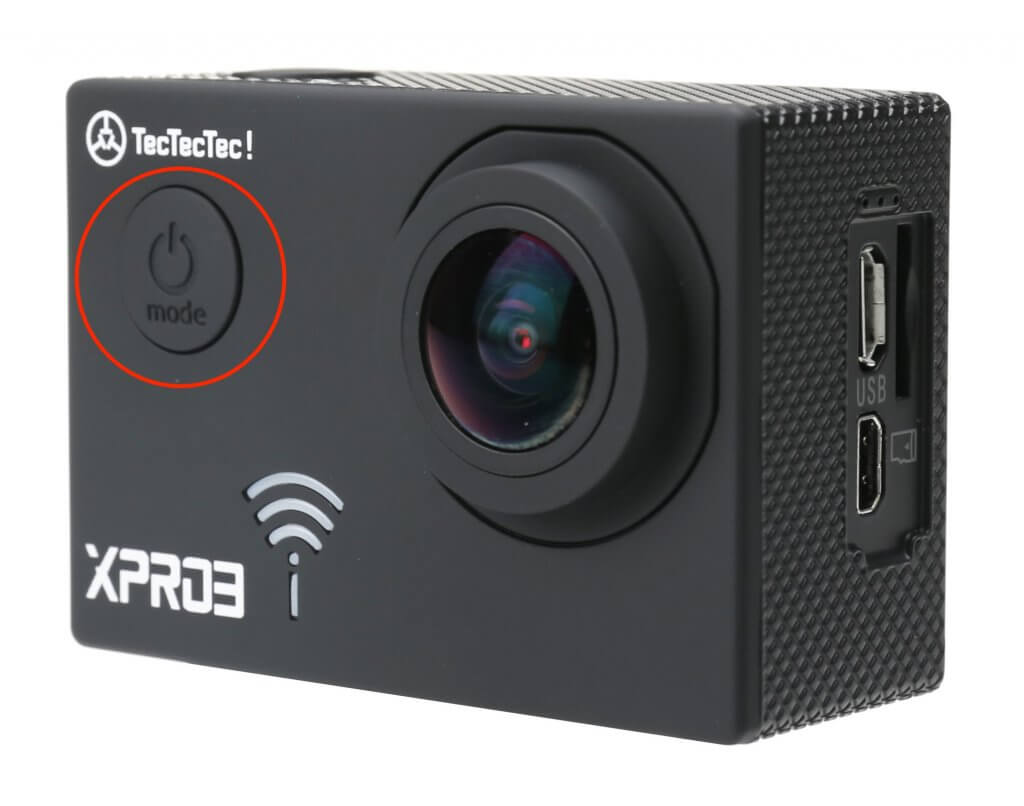
Press the “Power” button to reach settings menu |
 |
| Step 3
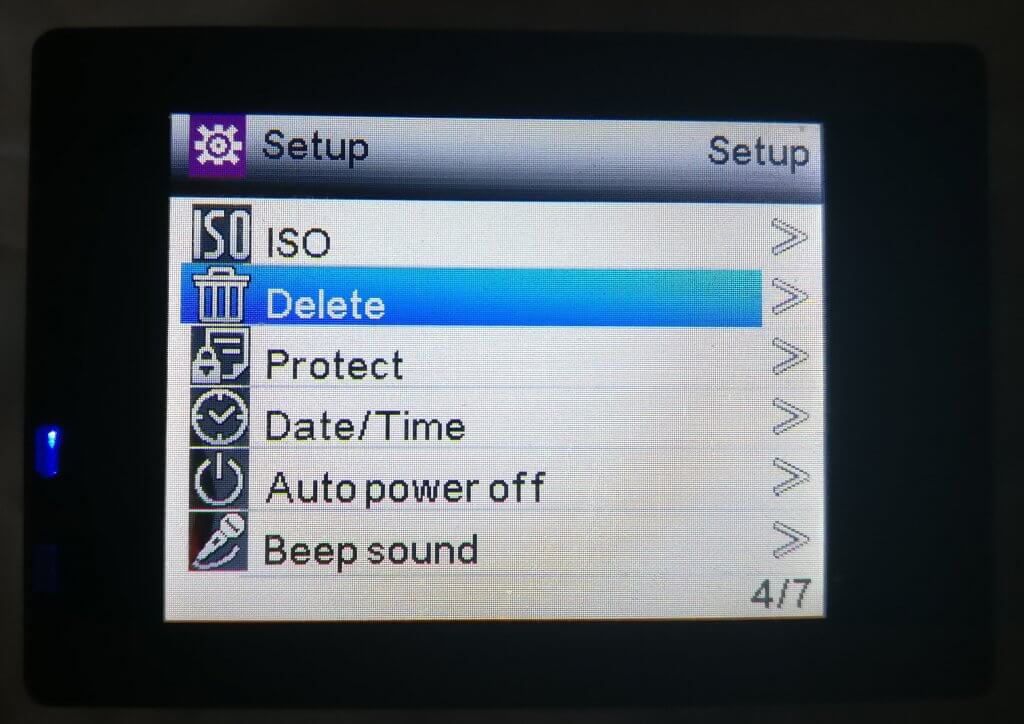
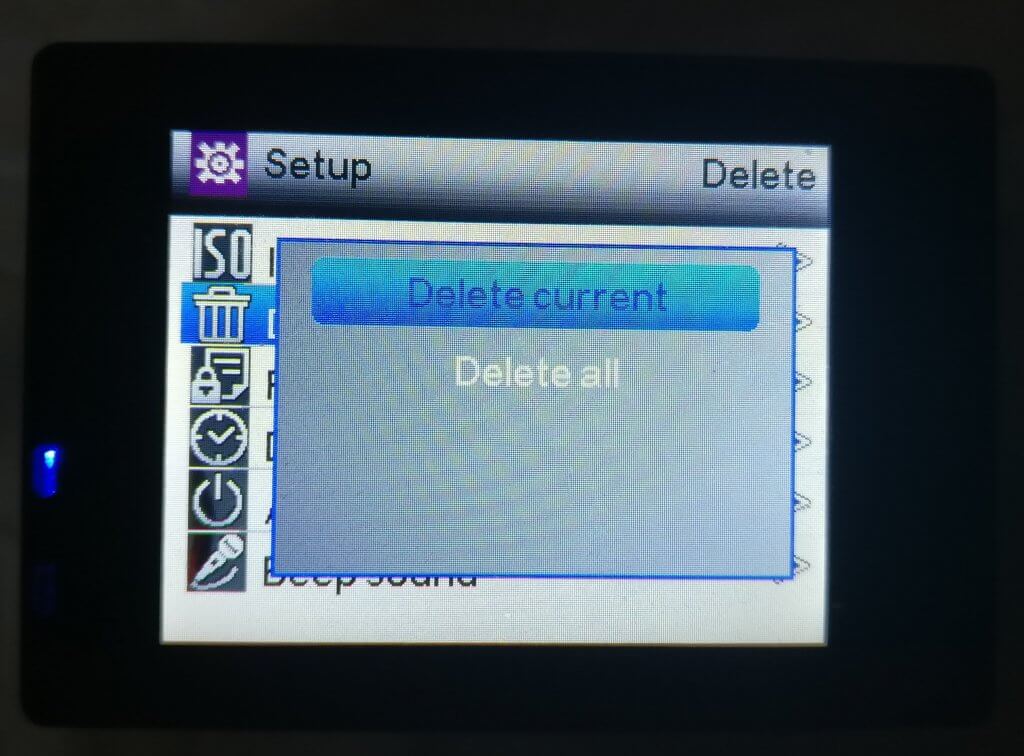
Select “Delete” |
 |
| Step 4
Select “Delete Current” if you want to delete one file, select ”Delete All” if you want to delete all files |
 |
————————————————–XPRO4, XPRO4+————————————————– |
|
| Step 1
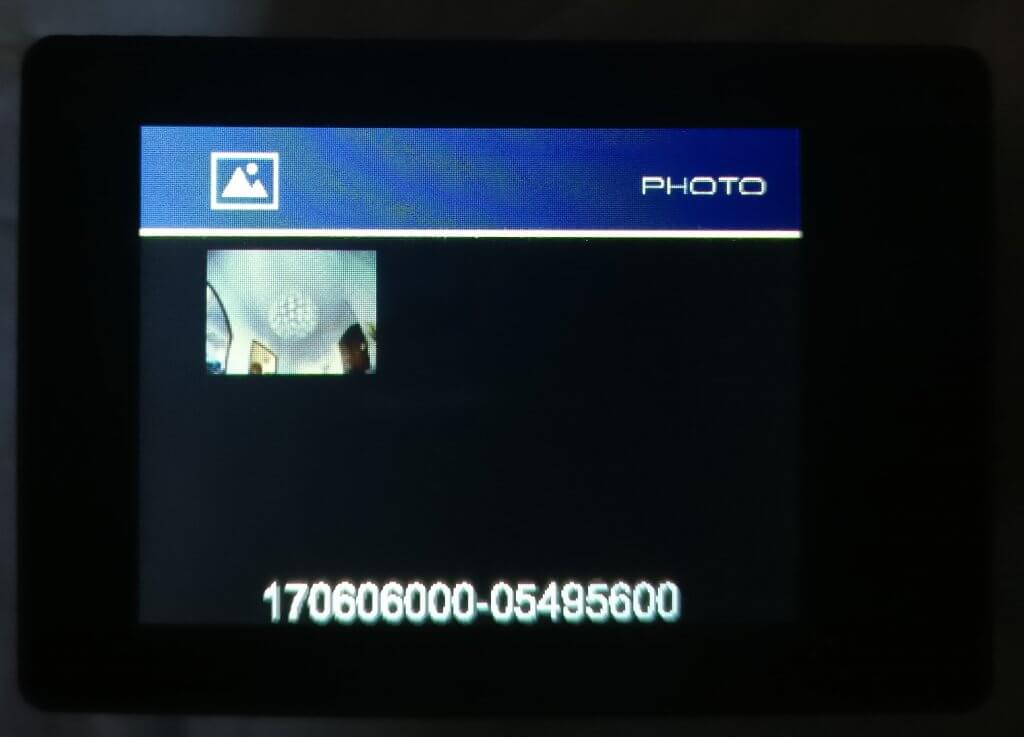
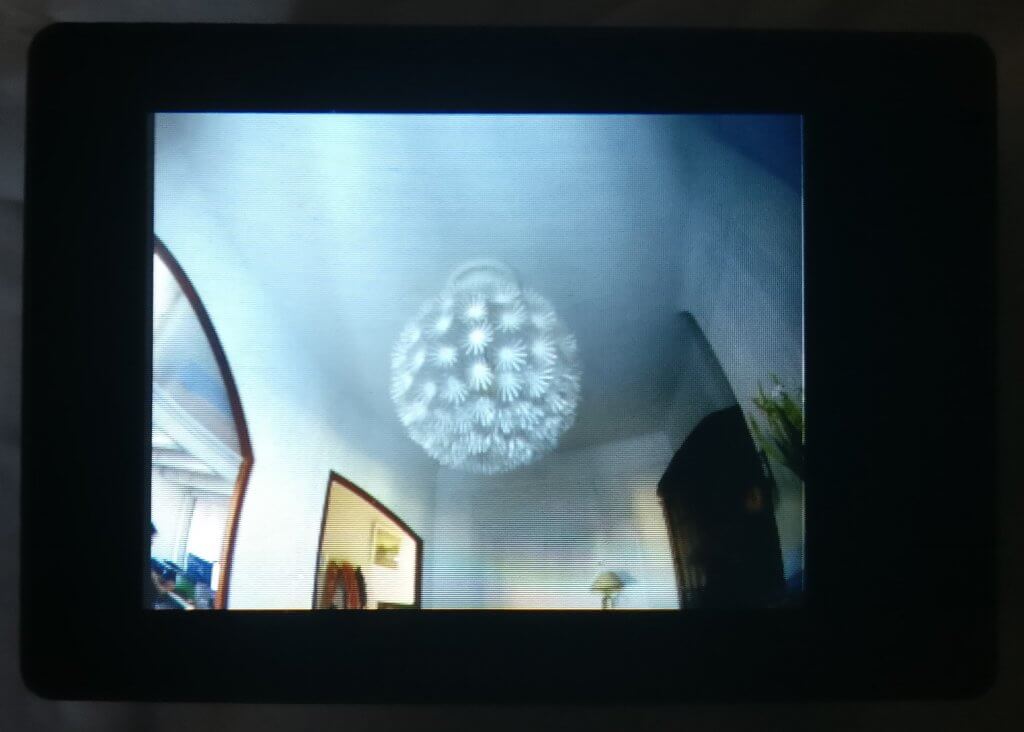
Choose the file you want to delete and keep it on the screen |
  |
| Step 2
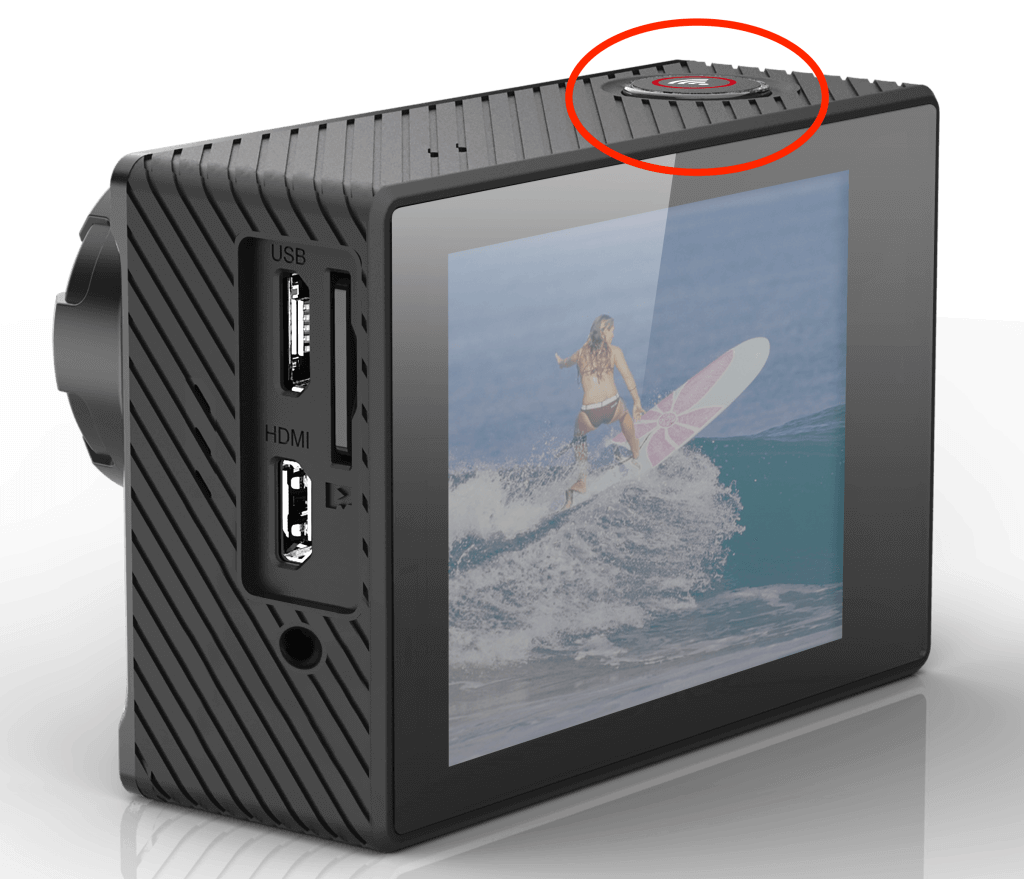
Press and hold “WiFi” button |
 |
| Step3
Select “O” to delete the file |
 |
How Do I Delete Files from My XPRO?
Need help or a replacement part?
Tell us the exact model and describe what you need. A photo of your equipment or the part helps our team check compatibility and availability.