
Do you need to make presentations? No video projector in some of the meeting rooms? Take your mini projector to meetings. There’s no need to plug it in thanks to the battery.
How Do I Make a Presentation with My Mini Projector Using My Android Smartphone?
Tutorial for Android:
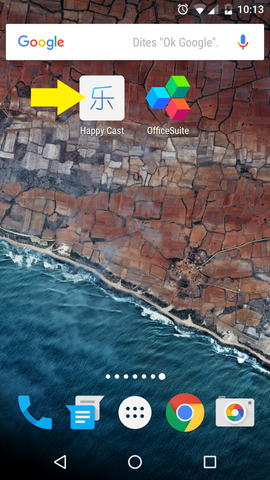
Find Happy Cast in VPRO1 applications and open it. (Do not download the latest update. To go back to the previous version you can download the apk for the VPRO1 here). Flash the code with your smartphone and install the application or download it from this link. Ensure that you have authorized third-party application installation.
Open happy cast.
Select the mini projector (Here “Happy cast (838)”). The smartphone and the mini projector must be connected to the same WiFi network. (You can also create a network with your smartphone. See the tutorial here.)
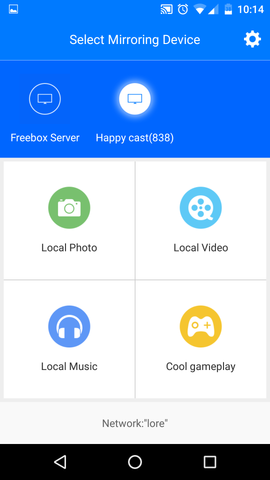
As the mirroring begins, the screen of your smartphone should be projected by the VPRO1 mini projector.
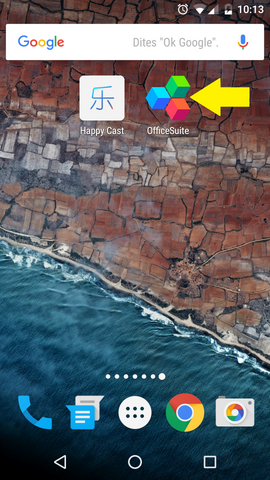
Open the OfficeSuite application.
Select your PowerPoint presentation. Now select “Start Slide Show”.
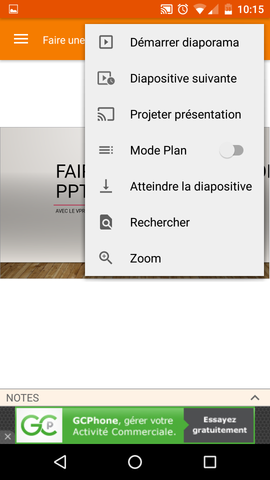
Your presentation should appear full screen. You can control the changing of each slide from your smartphone.
Selecting play allows YouTube to receive device and viewing information and use cookies or similar storage. You can close the player at any time. YouTube privacy